
Features
Find your files in seconds with Tagging for Windows
It can take you a long time to search in Windows File Explorer for a specific document. Organize your files and streamline your workflow with the help of Tagging for Windows.
Our easy-to-use software allows you to tag all of your documents, making it a snap for you to find them when you need them. Tag files, documents, and more with the help of Tagging for Windows.
We offer continuous paid and free license options for our customers. Learn more and get started today.
Tagging
⋎ Tag any file type and folders
⋎ Tag multiple files/folders/tags with multiple tags
⋎ Create tag lists and hierarchies
⋎ Create Tag Group(s)
⋎ Tag Webpages
⋎ Easy adding new tags or selecting existing tags
⋎ A tag acts like a virtual folder
⋎ View files and folders of a tag and optional all it's child tags
⋎ View files and folders of a tag an optional all it's linked tags
⋎ Tags are kept when files and folders are moved, copied or renamed
⋎ Use coloured icons
⋎ Preview- and details pane are supported
⋎ Tag functions available using context menu's and keyboard shortcuts
How our process works
⋎ Step One: Pick Your Subscription Plan
Quickly sign up for a free account or purchase an annual subscription on our website.
⋎ Step Two: Download Our Software
The Tagging for Windows software be up and running on your computer in just a few minutes.
⋎ Step Three: Find What You Need
You'll be able to find your documents in seconds once you download the best file-managing software.
How to improve your productivity: 1 Hour Implementation Session
In this session (Zoom) we can address how to tackle the following topics:
⋎ (Further) implementation strategy of Tagging for Windows
⋎ What goals did you set?
⋎ In what area of your organization do you want an improvement of productivity?
⋎ Speed upt the tagging process using Search and Tag (Bulk tagging)
⋎ Tips and tricks using the software
⋎ Speed up finding files using the Smart View.
⋎ How to motivate people using Tagging for Windows?
⋎ Where to look for measurable successes and how to share your successes?
⋎ How to implement Tagging for Windows on your LAN and/or using Cloud Services?
Shared Tagging
⋎ Share Tag Group(s)
⋎ Use shared Tag Group(s)
⋎ Start/stop synchronizing
⋎ Use Cloud Services (e.g. Dropbox, OneDrive, iCloud, Google Drive, etc.)
⋎ Using your LAN.
⋎ Easy configuration
Smart View
⋎ Define Smart View based on tag(s)
⋎ Use any combination of tags
⋎ Save Smart View definitions
⋎ View files and folders of a tag and optional all it's child tags (under development)
⋎ View files and folders of a tag and optional all it's linked tags (under development)
⋎ Save Smart View results
Search and Tag
⋎ Search based on text in the name of the file and/or in the content
⋎ Search for whole words or parts of words
⋎ Select type of files to be searched
⋎ Preview files
⋎ Tag one or more found files with one or more tags
Export/import tags
⋎ Export tag(s) or Tag Group(s) with their links to files, folders and other tags
⋎ Export to CSV (under development)
⋎ Supports scheduling Export using Windows Task Scheduler
⋎ Import CSV
⋎ Import with Tagging for Windows created export
⋎ Map tags during import to existing tag structure
⋎ Map files and folders during import to existing file/folder structure
Sign-Up for a free or paid license today
⋎ Sign-up for Tagging for Windows for free today or register for an annual license. Make your life easier and get started today.
Version 4 - New Features
Search Tag Hierarchy + Search Tags matching text anywhere in the tag name

Select the 'Tag groups' in the Navigation Pane.

Enter a text in the 'Search Tag' box. Note that all tags matching the text anywhere in the name are listed.

Now 'double click' the required tag in the Tags Pane list and it will be selected in the Navigation Pane.

The 'matching text anywhere in the tag name' applies for searching a tag during 'Add or select Tag' as well.

View files and folders of child/linked tags

When a tag is selected in the Navigation Pane, the Folder View shows all the tagged (linked) files and folders.

When set, not only the tagged (linked) files and folders of the tag itself will be shown in the Folder View, but the files and folders of all its child tags as well.

When set, not only the tagged (linked) files and folders of the tag itself will be shown in the Folder View, but the files and folders of all its linked tags as well.

Reset to the normal case,only the tagged (linked) file and folder of the tag itself will be shown.
SmartView Extensions
Expand with (AND) (OR) (NOT)

The 'Add to smart view' menuitem has some submenus..

The tag 'Important' will be added to the Smart View. Is will be combined with the existing tag '2023' which has the "plus" set.

The tag 'Important' will be added to the Smart View with "plus" set.

The tag 'Important' will be added to the Smart View with "minus" set.

The tag 'Important' will be added to the Smart View with "ignore" set.
SmartView Extensions
Include files and folders of child/linked tags in the result

When a tag is used the Smart View processes all its tagged (linked) files and folders.

When set, not only the tagged (linked) files and folders of the tag itself will be processed, but the files and folders of all its child tags as well

When set, not only the tagged (linked) files and folders of the tag itself will be processed, but the files and folders of all linked tags as well.

Reset to the normal case,only the tagged (linked) file and folder of the tag itself will be processed.
Minimize the Tags pane

The Tags Pane can be hidden in the Options, but sometimes it is more convenient to minimize it,

Press the 'Minimize tags pane' button.

The number of tags and comments is shown in the line that remains.

Press the 'Restore Tags pane' button to invert the action.
Option Sets
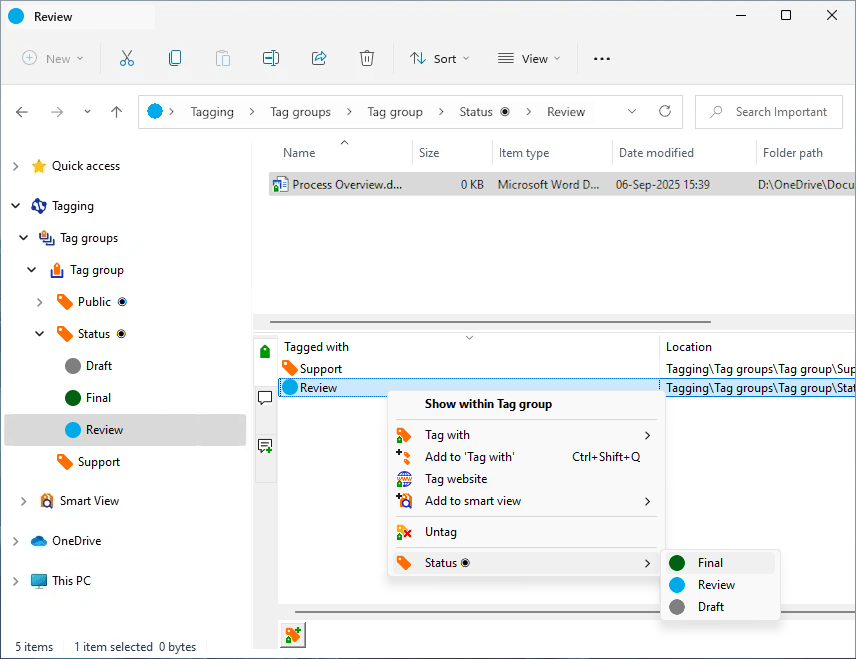
A tag can become an 'option set'.
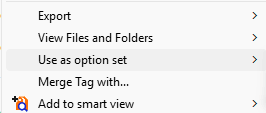

Every child tag and linked tags is part op the option set.
If e.g. a document has one of the tags contained by the set, Another can be choosen in the context menu..
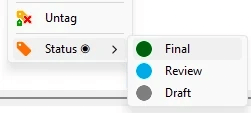
This feature, in which a quick status change is possible, can be used
as a part of your own
Document Management System
Custom Icons
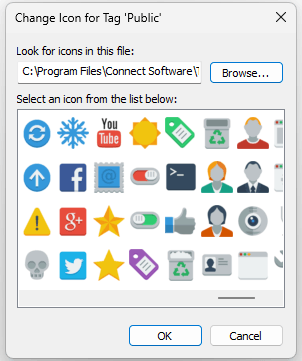
Choose the now available
'Browse' button
to select a custom icon pack.
A custom icon pack is a dll prefixed with CustomIconPack and
a number at the end.
Connect Software B.V.
© 2025
Patent US9710477B2
Cookie Policy


